# Request Approval

Add Request Approvals to tickets when another team or stakeholder needs to review a request before it can be resolved.

Tickets tend to be one-off chunks of work involving a single team. For example, IT help desk agents work through IT-related tickets, while product help desk agents handle product requests. While each help desk has its own assigned agents, there are cases where another team needs to be involved.

That's what Ticket Approvals are for. For example, if a request involves spending a large sum of money, someone from the finance team may need to approve the request before the Ticket can be resolved. Once an approval has been added to a Ticket, the Ticket cannot be resolved until it's approved or the Approval has been removed.&#x20;

Anyone can be assigned to a Ticket Approval, regardless of whether they are an Agent on the Inbox or not.

### Requesting Approval

You can request Approval from both Slack and the Wrangle web app.

#### From Slack

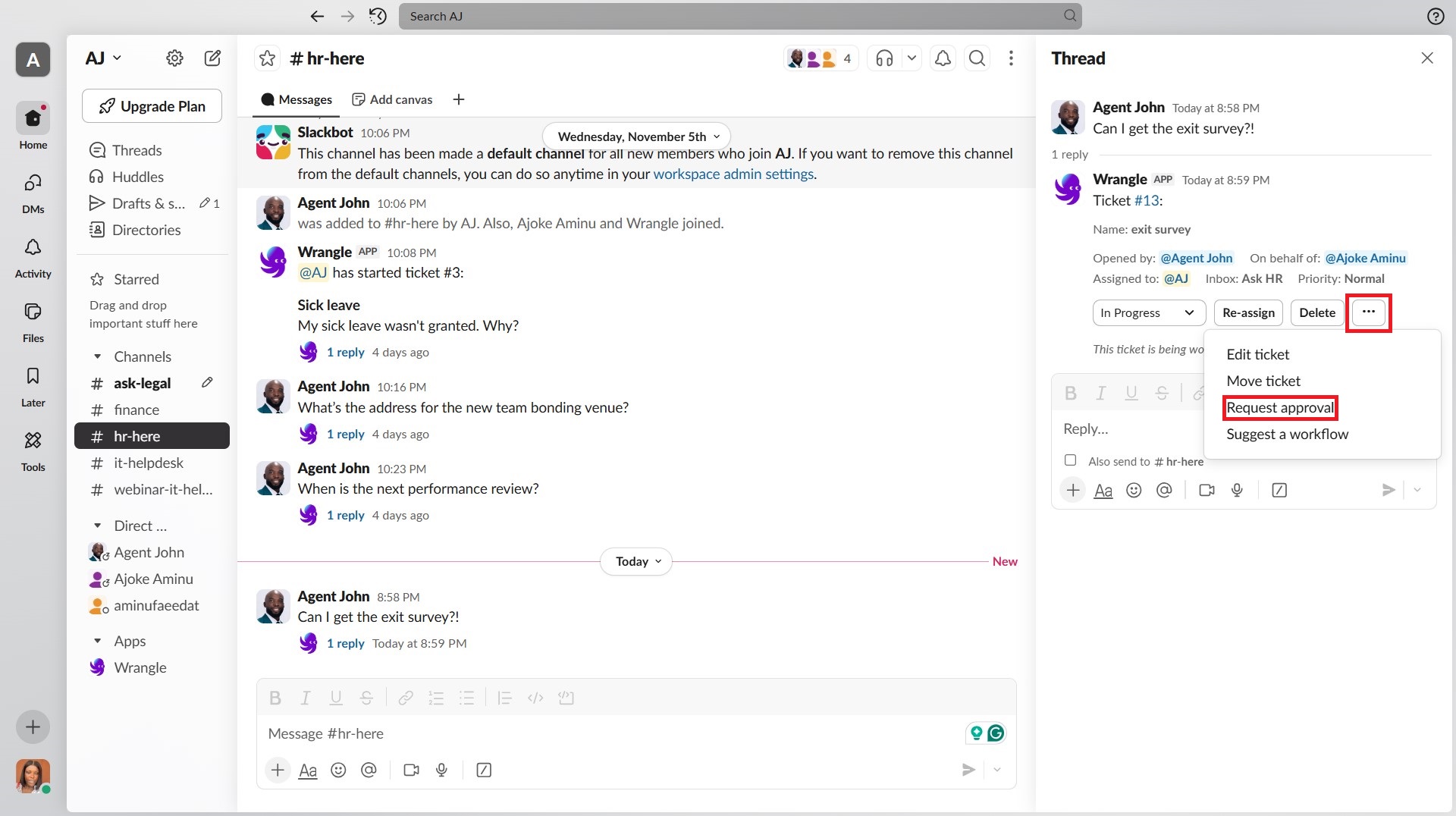
<figure><img src="https://3500333410-files.gitbook.io/~/files/v0/b/gitbook-x-prod.appspot.com/o/spaces%2F-M8Mly5TzbK30rAk6_PN%2Fuploads%2FyJowX2YJCHB6oFcBfp70%2FSlack%20Approval.jpg?alt=media&#x26;token=883721ce-9db2-4904-909c-d01d564b7a92" alt=""><figcaption><p>Click the Request Approval button in Slack.</p></figcaption></figure>

1. **Open the ticket thread** in Slack
2. **Click the `...` menu** (three dots) in the ticket message
3. **Select "Request approval"** from the menu
4. **Choose who should approve** the request by selecting one or more people
5. **Submit the approval request.**

#### From the web

<figure><img src="https://3500333410-files.gitbook.io/~/files/v0/b/gitbook-x-prod.appspot.com/o/spaces%2F-M8Mly5TzbK30rAk6_PN%2Fuploads%2FuBQ3sdo4pMpRMT3PjwdH%2FWeb%20Approval.jpg?alt=media&#x26;token=47efdc59-e492-41cf-a3af-3b23f0df873d" alt=""><figcaption><p>Click Request Approval on the Wrangle web app.</p></figcaption></figure>

1. **Go to your ticket** at <https://slack.wrangle.io/tickets> or open it from your dashboard
2. Open the ticket page and **click "Request approval"**&#x20;
3. **Choose who should approve** the request by selecting one or more people
4. **Submit the approval request**

### Managing approval requests

#### Responding to an approval

When you're assigned to approve a ticket, you have three options:

**Approve**\
The request meets all requirements and can proceed. Once approved, the ticket can be resolved.

**Request changes**\
The request needs modifications before it can be approved. The ticket cannot be resolved until changes are made and a new approval is granted.

**Deny**\
The request cannot be approved. The ticket cannot be resolved while the approval is denied, but the approval can be removed if needed.

**Responding from Slack**

When you receive an approval request in Slack, you'll see three buttons in the ticket thread:

<figure><img src="https://3500333410-files.gitbook.io/~/files/v0/b/gitbook-x-prod.appspot.com/o/spaces%2F-M8Mly5TzbK30rAk6_PN%2Fuploads%2FJfEhGVecO1Ow3v2Ss0BT%2FSlack%20Approval.jpg?alt=media&#x26;token=7743b537-3786-4780-baf6-82ae82ccaa12" alt=""><figcaption><p>Slack thread page displaying approval options.</p></figcaption></figure>

1. Click the appropriate button for your decision
2. Add a comment explaining your decision (optional but recommended)
3. Your response will be recorded in the ticket thread

**Responding from the web**

When you go to a ticket with a pending approval:

<figure><img src="https://3500333410-files.gitbook.io/~/files/v0/b/gitbook-x-prod.appspot.com/o/spaces%2F-M8Mly5TzbK30rAk6_PN%2Fuploads%2F7PkvEerumluugMkzDGcK%2Fimage.png?alt=media&#x26;token=2ab2f850-f92a-4933-845c-f6ed3b60ab24" alt=""><figcaption><p>Approval buttons on the Wrangle web app.</p></figcaption></figure>

1. Click the appropriate button for your decision
2. If you select "Request changes," you'll be asked to add a comment explaining what needs to be modified. For "Approve" or "Deny," your response will be recorded immediately.&#x20;
3. Your response will be recorded on the ticket.

#### Removing an approval

If an approval is no longer needed, it can be removed from the ticket:

**From Slack**

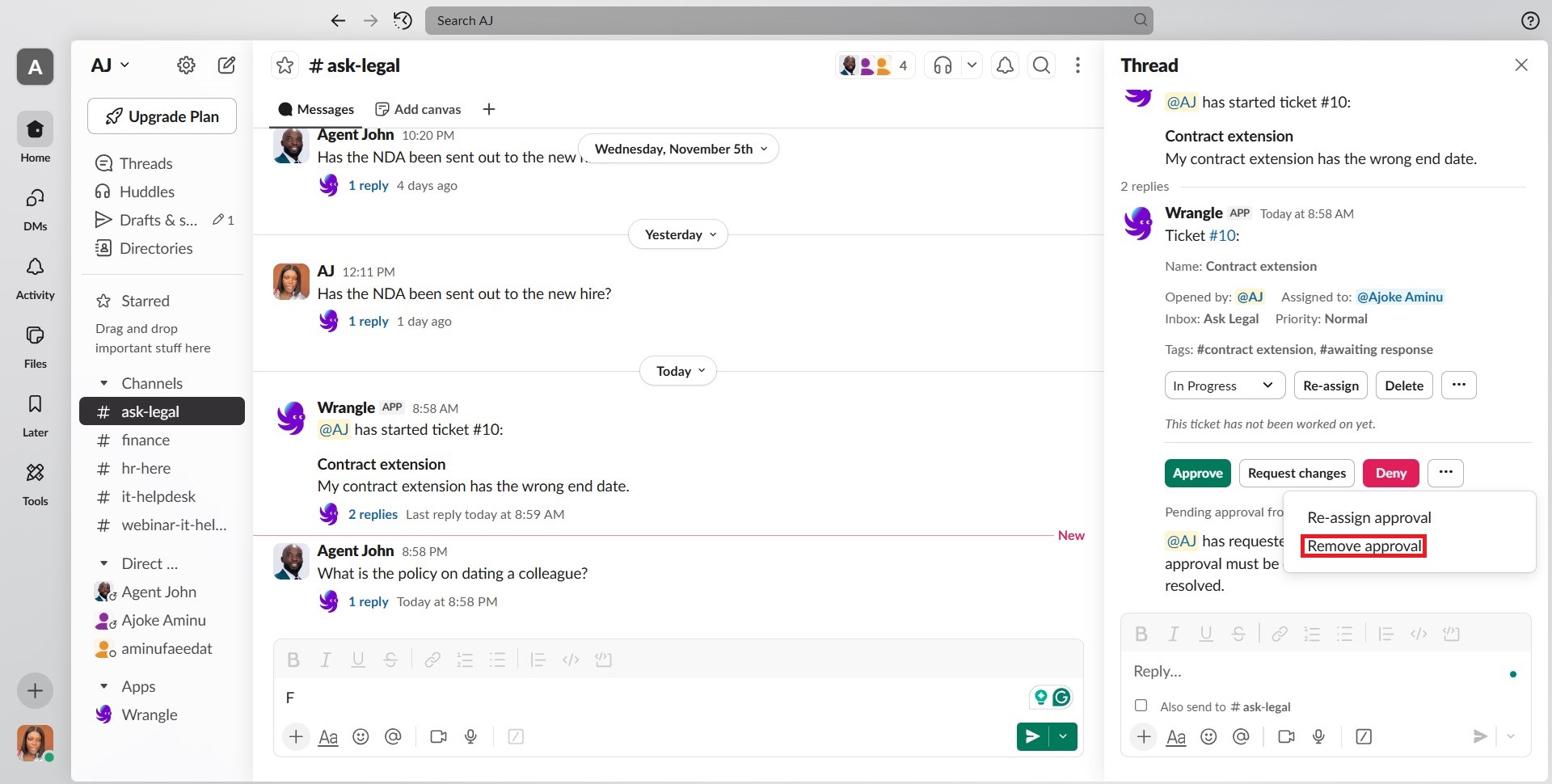
1. Open the ticket thread
2. Click the `...` menu on the approval request
3. Select "Remove approval"

<figure><img src="https://3500333410-files.gitbook.io/~/files/v0/b/gitbook-x-prod.appspot.com/o/spaces%2F-M8Mly5TzbK30rAk6_PN%2Fuploads%2F9Bdk9DQ9bzuAyf0PPPW8%2FSlack%20Approval.jpg?alt=media&#x26;token=324a38d9-ff76-4809-9294-69ab33ab4b78" alt=""><figcaption><p>Remove Approval Request on Slack.</p></figcaption></figure>

**From the web**

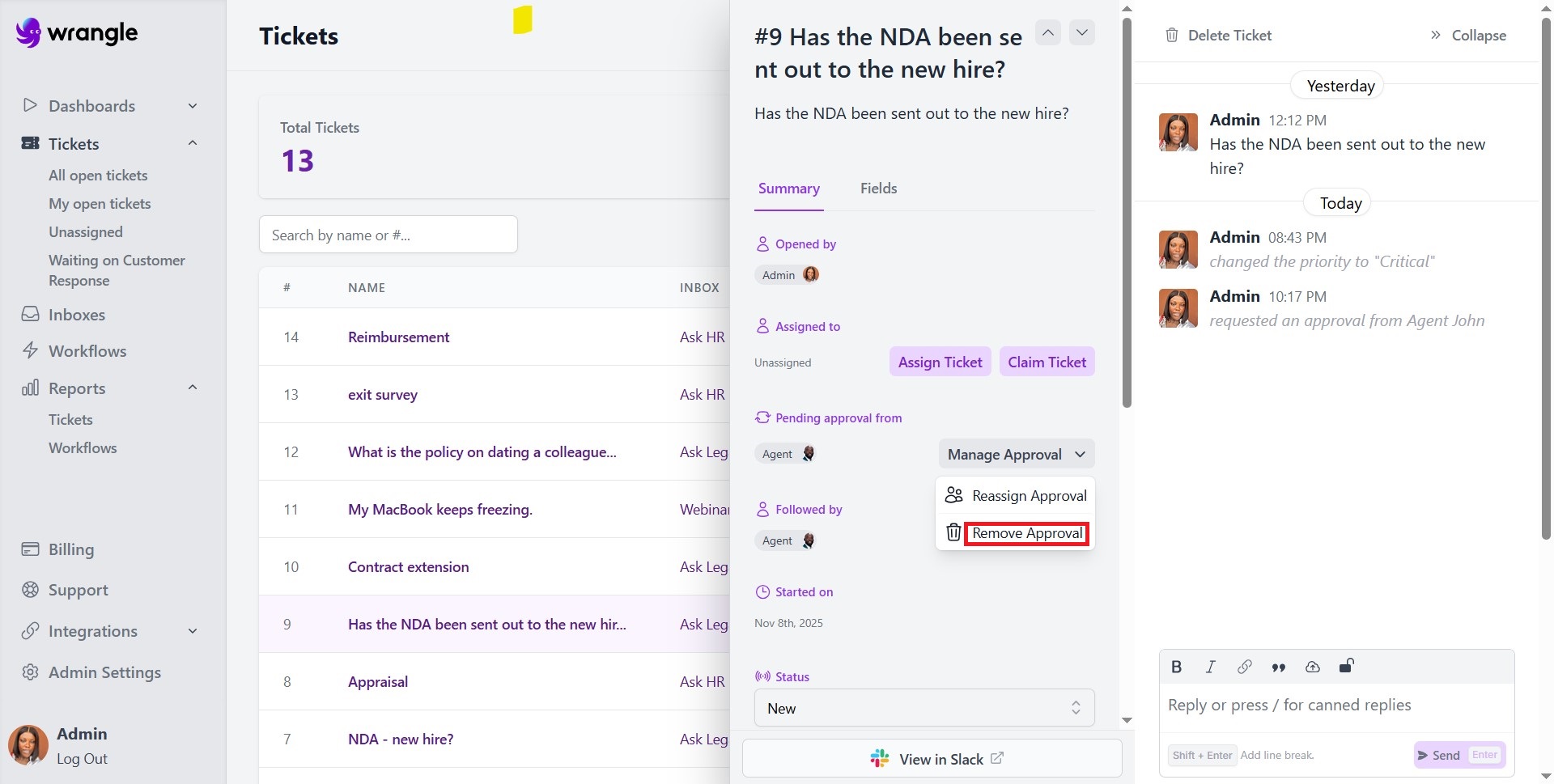
1. Go to the ticket
2. Find the approval request
3. Click "Remove approval"

<figure><img src="https://3500333410-files.gitbook.io/~/files/v0/b/gitbook-x-prod.appspot.com/o/spaces%2F-M8Mly5TzbK30rAk6_PN%2Fuploads%2F6aTXC46E786fWrZf3ngt%2FWeb%20Approval.jpg?alt=media&#x26;token=89897db4-b2d1-47b4-8ba6-f65857a5df17" alt=""><figcaption><p>Remove Approval Request on Wrangle web app.</p></figcaption></figure>

{% hint style="info" %}
Once removed, the ticket can be resolved without approval.&#x20;
{% endhint %}

### Approval notifications

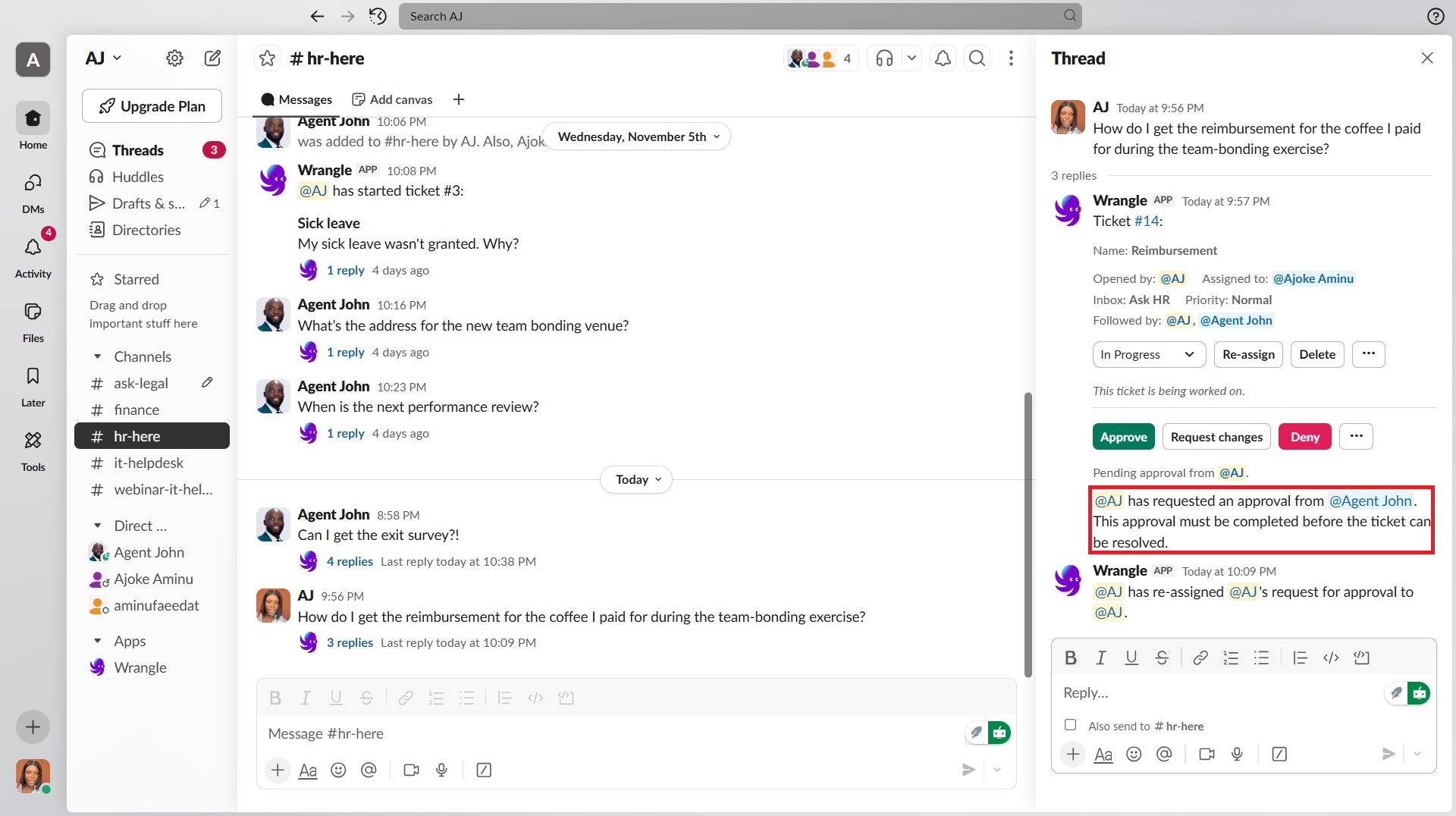
**When an Approval is requested:**

* The assigned approver(s) receive a notification in Slack
* The approval is visible in the ticket thread and on the web

<figure><img src="https://3500333410-files.gitbook.io/~/files/v0/b/gitbook-x-prod.appspot.com/o/spaces%2F-M8Mly5TzbK30rAk6_PN%2Fuploads%2FK3RIHdhRSuIyMOr6J9Yh%2FSlack%20Approval.jpg?alt=media&#x26;token=23b15aa2-e6a0-4d36-b960-1d56295da2ce" alt=""><figcaption><p>Approval Request notification.</p></figcaption></figure>

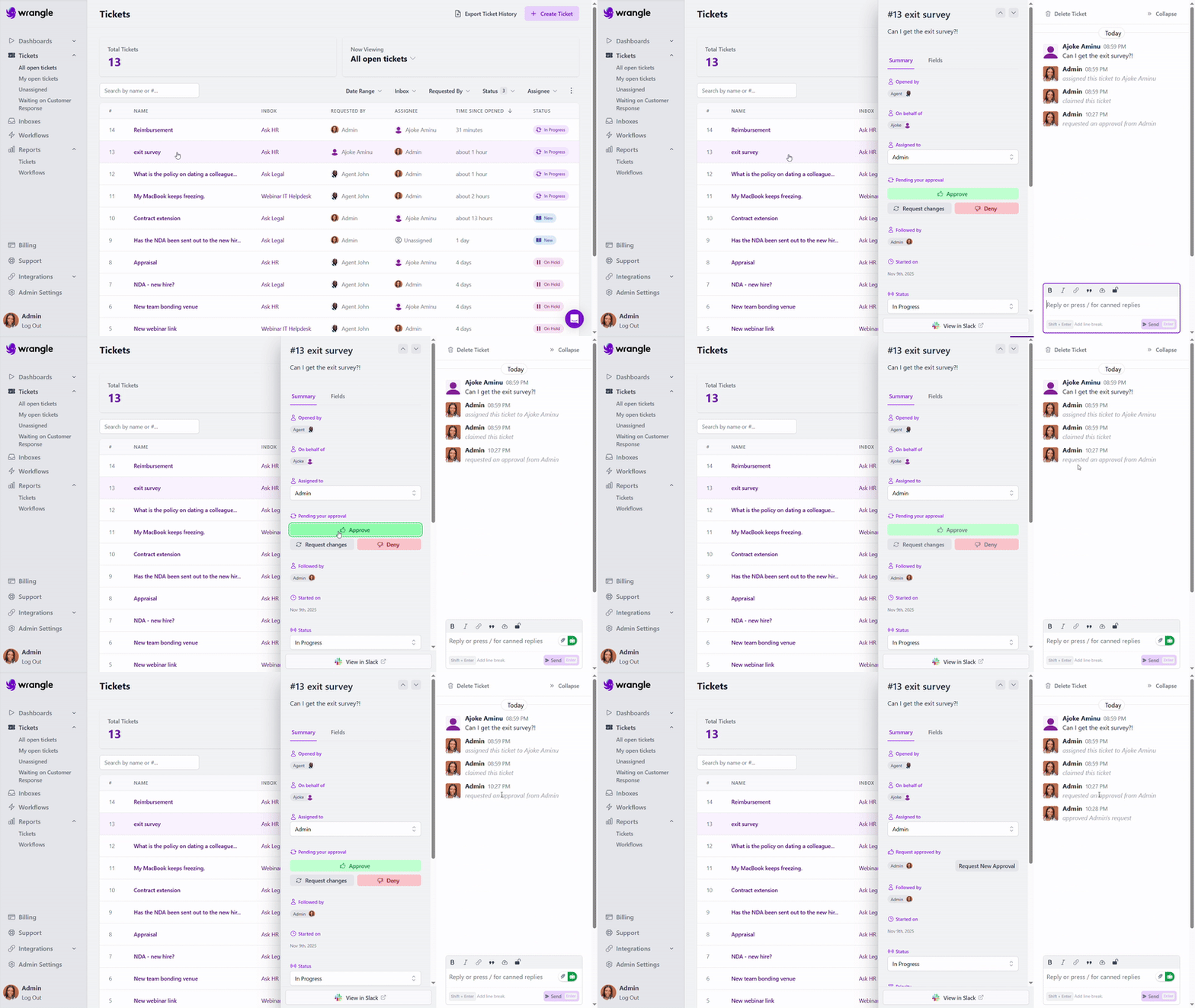
**When an Approval is responded to:**

<figure><img src="https://3500333410-files.gitbook.io/~/files/v0/b/gitbook-x-prod.appspot.com/o/spaces%2F-M8Mly5TzbK30rAk6_PN%2Fuploads%2FjUmKAulfrEIATf8tjsmB%2FWrangle2025-11-0915-27-38-Trim-ezgif.com-video-to-gif-converter.gif?alt=media&#x26;token=f2c7a661-a3f4-42c9-bda6-b77baf1b797e" alt=""><figcaption><p>Approve request on Wrangle web app.</p></figcaption></figure>

* The ticket requester receives a notification

<figure><img src="https://3500333410-files.gitbook.io/~/files/v0/b/gitbook-x-prod.appspot.com/o/spaces%2F-M8Mly5TzbK30rAk6_PN%2Fuploads%2F0c4FHoaKDVDuMbbof8JN%2FSlack%20Approval.jpg?alt=media&#x26;token=7f02c3b0-af53-4f89-965b-26e50b647aa9" alt=""><figcaption><p>Slack thread displaying Approval Request denied.</p></figcaption></figure>

* Any ticket followers receive a notification
* The agent assigned to the ticket receives a notification
* The response is recorded in the ticket thread

## Perfect for cross-team requests, **like finance approvals or manager sign-offs**

**Finance approvals**\
Requests involving purchases, reimbursements, or budget expenditures exceeding a certain threshold require approval from the finance team before the ticket can be resolved.

**Manager sign-off**\
HR requests, time-off requests, or policy exceptions need manager approval before they can be processed.

**Security review**\
Access requests, permission changes, or system modifications require security team approval before implementation.

**Hardware purchases**\
IT requests for specialized or expensive equipment need approval from a budget owner or department head.

**Cross-team dependencies**\
When resolving a ticket requires work or approval from another team that doesn't regularly work in the inbox.