> For the complete documentation index, see [llms.txt](https://docs.wrangle.io/llms.txt). Markdown versions of documentation pages are available by appending `.md` to page URLs; this page is available as [Markdown](https://docs.wrangle.io/tickets/getting-started-with-wrangle/wrangle-for-teams.md).
# Wrangle for Teams
Get up and running with Wrangle ticketing in just a few minutes. This guide will walk you through setting up your first inbox and turning Teams messages into trackable tickets.
### Step 1: Connect Teams to Wrangle
Before you can start managing tickets, you'll need to connect Wrangle to your Teams tenant.
[Installing Wrangle in Teams](/tickets/getting-started-with-wrangle/installing-wrangle-in-teams.md)
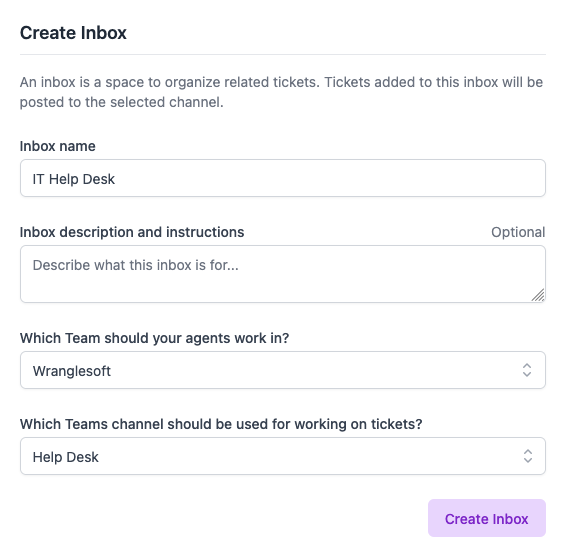
### Step 2: Create your first Inbox in Wrangle
An Inbox is a collection of related tickets that are worked on by a specific set of Agents (team members who can assign and resolve tickets). Think of it as a folder for organizing your support requests.
You'll need to name your inbox, and pick a Team and Channel for your agents to work from. You can always change these values later.
### Step 3: Create your first Ticket
Now that you've created an inbox for your tickets, you're ready to create your first ticket. You can do this from [the web](https://app.wrangle.io/tickets/new), or [directly from Teams](/tickets/creating-tickets/creating-tickets-from-teams.md).
### Step 4: Manage your tickets from the web
Wrangle's web portal allows your agents to monitor and manage tickets:
* [**Tickets Dashboard**](https://app.wrangle.io/tickets) - Create custom views and assign and update tickets.
* [**Ticket Reports**](https://app.wrangle.io/reports/tickets) - View trends and dive deeper into agent performance using Wrangle's ticketing reports.