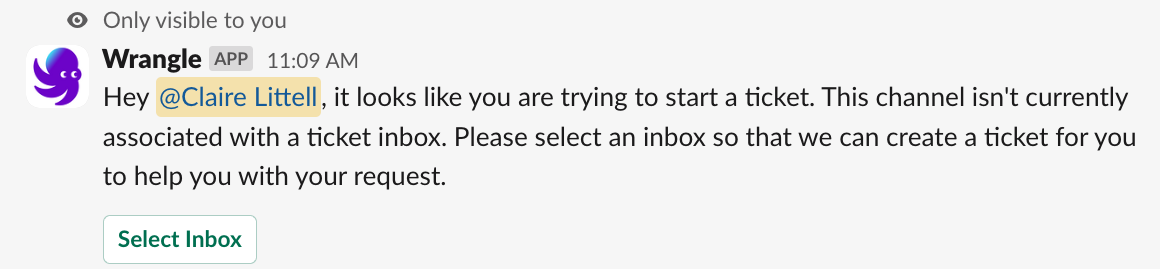
#### Step 2
In the menu that appears, navigate to the Shortcuts section and select "Start a Ticket with Wrangle." If you don't see this shortcut, click "More message shortcuts..." and select it from the list of options.
#### Step 2
In the menu that appears, navigate to the Shortcuts section and select "Start a Ticket with Wrangle." If you don't see this shortcut, click "More message shortcuts..." and select it from the list of options.
 #### Step 3
After selecting the option, choose the appropriate inbox where the ticket should be sent. The ticket's name and description, along with the individual on whose behalf the ticket is being created, are automatically filled in. Specify that the issue is related to your desired inbox (in this example, \
#### Step 3
After selecting the option, choose the appropriate inbox where the ticket should be sent. The ticket's name and description, along with the individual on whose behalf the ticket is being created, are automatically filled in. Specify that the issue is related to your desired inbox (in this example, \ #### Step 4
Once the inbox is selected and all information is verified, proceed to start the ticket.
#### Step 4
Once the inbox is selected and all information is verified, proceed to start the ticket.
 #### Step 5
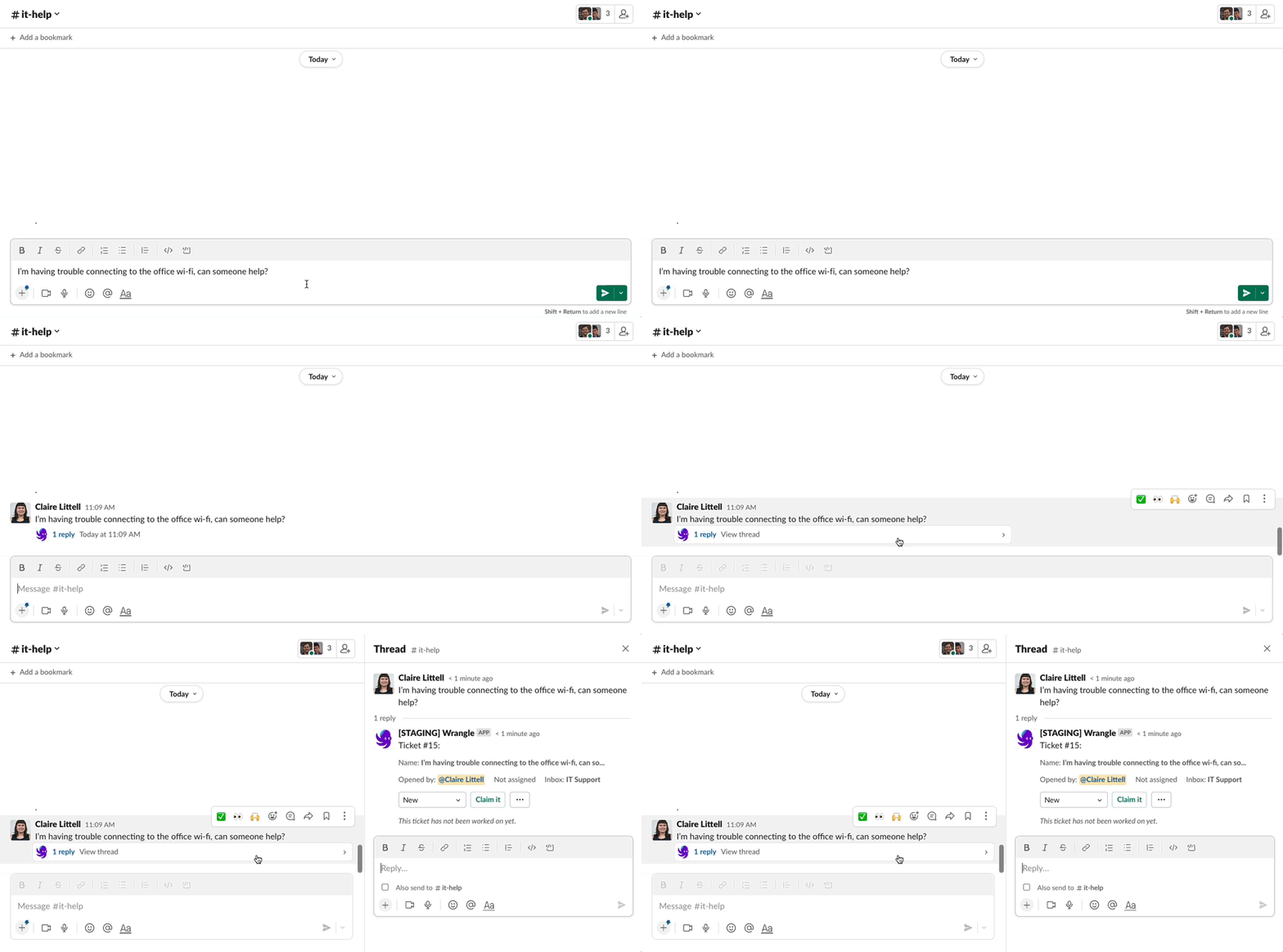
Upon starting the ticket from the DM, a reply to the original message is generated.
#### Step 5
Upon starting the ticket from the DM, a reply to the original message is generated.
 #### Step 6
This reply indicates that a ticket has been created, and includes a link to track the request. The link is also posted in the Inbox related channel.
#### Step 6
This reply indicates that a ticket has been created, and includes a link to track the request. The link is also posted in the Inbox related channel.
 #### Step 7
Within the Inbox channel, the tickets are properly organized, simulating that the ticket was perfectly created by the original requester.
#### Step 7
Within the Inbox channel, the tickets are properly organized, simulating that the ticket was perfectly created by the original requester.
 #### Step 8
The ticket now resides in the correct location, allowing for the ticket to be claimed and work to commence.
#### Step 8
The ticket now resides in the correct location, allowing for the ticket to be claimed and work to commence.


Assign an inbox, give the ticket a short but descriptive name, and add any necessary context
Create tickets automatically from new channel messages.

Choose your intake channel(s)

Toggle this setting on to auto-create tickets from bot messages

Use a ticket reacji to start a ticket in your inbox channel