Settings
Customize general options for your inbox like the name and description.
Ticket visibility (private internal ticketing and customer support inboxes only)
Slack channel used for creating and working on tickets
Inbox Name
Use a self explanatory name, such as IT Help Desk, Product Requests, or HR Support.
Inbox Description
This is an optional user facing description or instructions for your inbox in case you'd like to expand on what your inbox should be used for. This will be visible in Slack and on the web for users when creating tickets in this inbox.
Inbox Type
With Wrangle, there are three types of inbox you can set up: internal ticketing, private internal ticketing, and customer support. Each inbox type has different options for how ticket updates are shared with requesters, including how much ticket data requesters can see.
Internal Ticketing
Threaded replies in the channel
Visible
Private Internal Ticketing
DM from Wrangle
Visible, Limited
Customer Support
Threaded replies in the channel
Visible, Limited, Silent
Ticket Visibility
Visible inboxes mean all ticket data is shared with requesters, including agent replies, ticket status, priority, assignee, tags, SLA notifications, and more.

Limited inboxes mean only agent replies, ticket name, and ticket status are shared with requesters.

Silent inboxes mean no ticket data, including agent replies, is shared with requesters. If you use a message shortcut instead of an emoji reaction to create the ticket, there will be no visual cue that a ticket was created.

Internal Ticketing
Select this option for internal tickets when the inbox is in either a public Slack channel or a private channel where your requesters are members. This is commonly used for non-sensitive internal issues, like general IT help, marketing requests, customer handoffs between sales and support, etc.
Requesters for an internal ticketing inbox will be able to see all ticket updates, including status, assignee, priority, SLA notifications, and more.
Private Internal Ticketing
Use this option when the inbox belongs to a private channel that the requester and followers might not always be members of. We'll send them a direct message when an agent replies and when the ticket status changes. This is commonly used for sensitive internal issues like HR requests, reimbursement requests, and personal IT requests.
Internal Notes
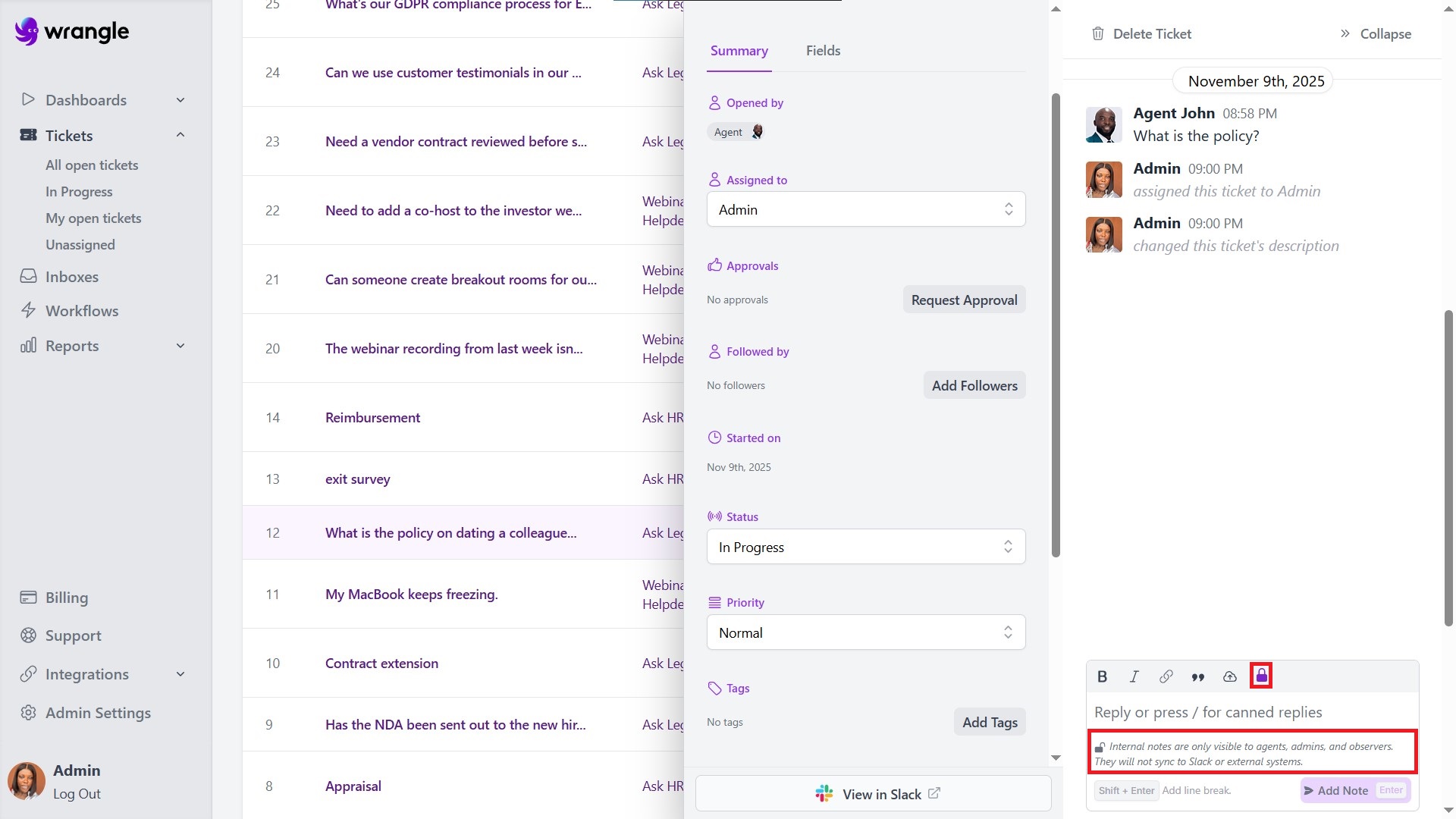
Internal notes allow agents to add private comments to tickets that are only visible to other agents, admins, and observers. These notes are useful for internal coordination, sensitive information, or context that shouldn't be shared with requesters.
Internal notes are only visible to agents, admins, and observers. They will not sync to Slack or external systems.
Adding Internal Notes from the Web

Open the ticket in the Wrangle web app
In the reply field, click the lock icon (🔒) in the formatting toolbar
Type your internal note
Click Add Note
Adding Internal Notes from Slack
To add an internal note from Slack, prefix your message with the 🔒 emoji in the private internal ticket thread. The emoji would indicate that it’s a private note and restrict other users from receiving the message.
Internal notes from Slack are only available for Private Internal Ticketing inboxes. To use this feature, your inbox must be configured as “Private Internal Ticketing” in Inbox Settings.
How Internal Notes Behave by Inbox Type
Internal Ticketing (public channels): Notes stay in the web app and never appear in the Slack thread.
Private Internal Ticketing: Notes stay in the web app and are never sent in DMs to requesters.
Customer Support (Slack Connect): Notes stay in the internal web app and are never mirrored to external customer channels.
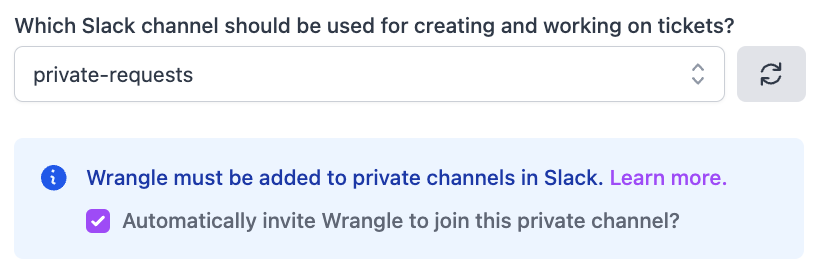
Wrangle and private channels
If your inbox channel is private, you'll need to invite Wrangle to the channel before any tickets can be created. You can automatically invite Wrangle when setting up your inbox by checking this box:

Once enabled, requesters will get a DM from Wrangle whenever they submit a ticket.
Customer Support
Select this option for customer support use cases where tickets are created by requesters via Slack Connect and managed by agents in a dedicated internal Slack channel. This is commonly used for teams who work with customers, vendors, or contractors via Slack Connect.
How channels work with Customer Support inboxes:
Which internal Slack channel should be used for working on tickets? - Select an internal slack channel for your agents to work from. When you create tickets in this inbox, you'll see tickets posted to this channel. They will be mirrored back to the original requester channel so your requesters can see them.
See Ticketing for Slack Connect for more on creating tickets for external customers via Slack Connect.
Last updated
Was this helpful?